
Automated TikTok Posting: How to Schedule (and Make) TikToks Automatically
Automated TikTok posting means your videos go live at set times without you opening the app. You can do it three ways: TikTok's own scheduler on desktop, a scheduling app that uses TikTok's official posting connection, or a tool like Autoclips that makes the video too and posts it on a schedule. Here is how each works and which to pick.
Quick answer
- Only need to post? TikTok's desktop site lets you schedule your own uploads ahead of time, and scheduling apps do it across accounts through TikTok's official posting connection.
- Want the videos made too? An AI automation writes, voices and edits a new TikTok and posts it at your times.
- In Autoclips: connect TikTok under Connect Socials, create an automation, set 1 to 3 videos a day, and switch on Post to TikTok.
- Keep it to a few posts a day and check the first ones by hand. TikTok rewards original videos, not volume.
Three ways to automate TikTok posting
| Way | What it automates | What you still do | Best for |
|---|---|---|---|
| TikTok's own scheduler (desktop) | Posting at a later time | Make every video, upload each one | One account, a few posts a week |
| Scheduling apps | Posting at set times, across accounts | Make every video, fill the queue | Brands and agencies with edited videos |
| AI automation (Autoclips) | Making the video and posting it | Pick the format, topics and times once | Faceless channels and daily posting |
Apps should post through TikTok's official Content Posting API. Avoid tools that log in as you with your password or use browser bots: they break often and can put the account at risk.
How to automate TikTok posting with Autoclips
- 1
Connect TikTok once
Open Connect Socials in the left menu and connect your TikTok account through TikTok's own sign-in.
- 2
Create an automation
In Automations, press Create Automation and pick a format that suits TikTok: Text Story (fake text chats over gameplay), Character Explainer, Stickman, Fruit AI / Animal Stories or Quiz all do well.
- 3
Set the schedule
Choose 1, 2 or 3 videos per day, the time each one posts, and the timezone of your audience.
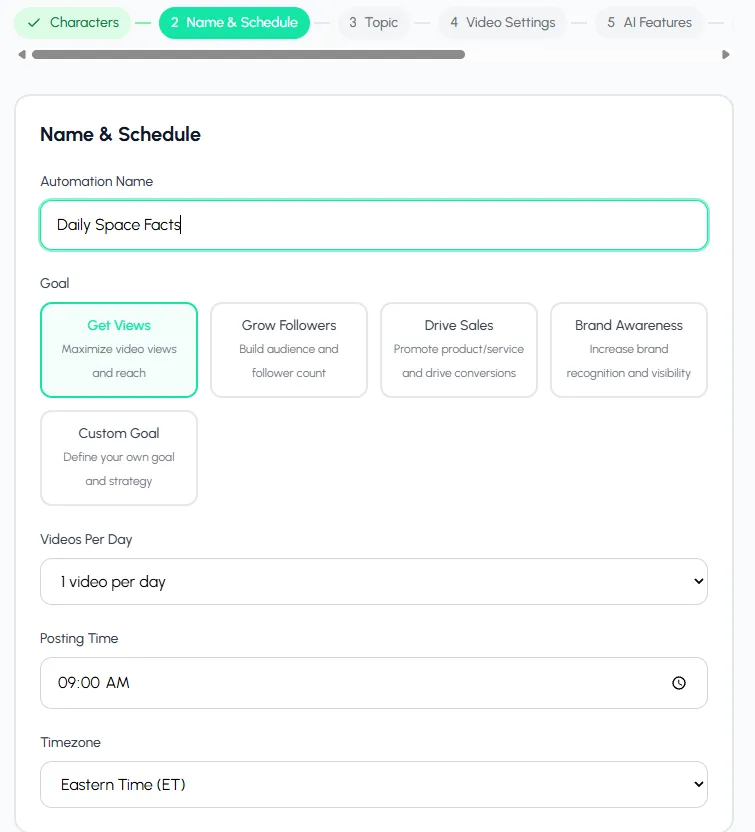
Pick 1 to 3 videos a day and the exact posting times in your timezone. - 4
Turn on Post to TikTok
In Publishing, switch on Post to TikTok. Add YouTube, Instagram, Facebook, X or Snapchat if you want the same video there too. Every video is also saved to your library.
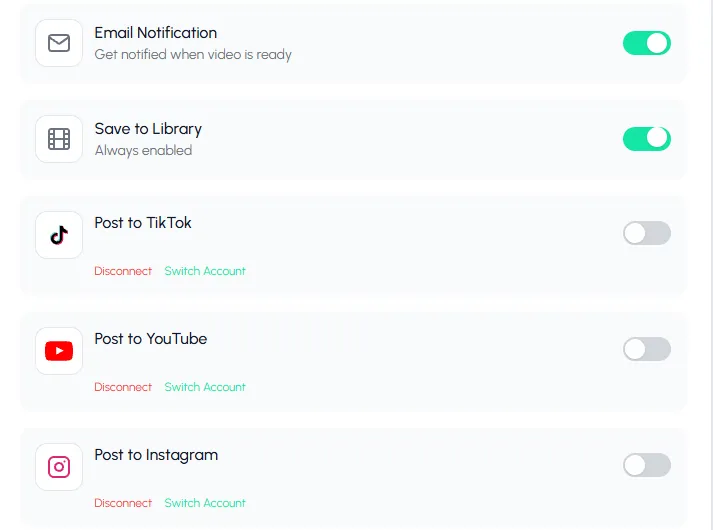
Connect TikTok once, then turn on Post to TikTok in the automation. - 5
Create it and test one
Check the credits per video on the review screen, create the automation, then press Test to make one video now. Watch it before the first scheduled post goes out.
Set it once. Each video is made and posted to TikTok at your times.
Create a TikTok automationTips for automated TikTok accounts
- Hook in the first second. TikTok viewers decide faster than on any other app. Lead with the conflict, the number or the question.
- Think about length. TikTok's Creator Rewards Program pays for videos over one minute, so if earning from TikTok is the goal, a 60 to 90 second story beats a 20 second clip.
- One niche per account. The For You feed learns who to show you to from your first videos.
- Don't flood it. One to three posts a day is plenty. Platforms also cap how many posts apps can send for one account in a day.
- Reply to comments yourself. It is the one part of a TikTok account you should never automate.
When posting fails
Most failed TikTok posts come from three things: the account connection expired (reconnect it under Connect Socials), the account hit TikTok's daily posting limit for apps (post fewer), or TikTok refused the video for its rules (check the content). The video itself is still in your library, so nothing is lost. For the bigger picture, see how to automate video creation with AI.
Made with Autoclips
Real videos people made in the app. Tap one to watch it with sound.
Frequently asked questions
Can you automate TikTok posting?
Yes. You can schedule your own uploads on TikTok's desktop site, use a scheduling app that posts through TikTok's official connection, or use a tool like Autoclips that makes the videos and posts them on a schedule.
Is automated TikTok posting allowed?
Posting through TikTok's official posting connection is allowed; that is what it is for. Bots that log in with your password or fake activity like comments and follows are not, and can get an account restricted.
How do I schedule TikTok posts for free?
TikTok's own desktop site lets you schedule videos you have already made, for free. Making the videos automatically is the part that costs: in Autoclips, each video uses credits.
How many TikToks should I post a day?
One to three a day is a good range for an automated account. More only helps if every video is still good, and apps are limited in how many posts they can send per account per day.
Can one automation post to TikTok and YouTube Shorts at the same time?
Yes. Switch on both in the automation's Publishing step and each video goes to both, plus Instagram, Facebook, X or Snapchat if you add them.
What happens if a TikTok post fails?
The video stays in your Autoclips library, so you can post it by hand. Reconnect TikTok under Connect Socials if the connection expired.
Let TikToks post themselves
Set a format and a time. Autoclips makes each video and posts it to TikTok for you.
Automate your TikTokAyaz Alam · Founder of Autoclips
Ayaz builds Autoclips and makes the tutorials on its YouTube channel. Every step in these guides is tested in the app before it is published.