
How to Automate Video Creation with AI: The Full Pipeline, Step by Step
To automate video creation with AI, you hand six jobs to software: picking the topic, writing the script, recording the voice, making the visuals, editing it together and posting it. Then you put those jobs on a schedule so a new video is made and posted every day without you touching it. Here is how that pipeline works, the three ways to build it, and how to set one up in about ten minutes.
Quick answer
- Automating video creation with AI means one system does every step: topic, script, voiceover, visuals, editing and posting, on a schedule you set.
- You can build it from separate tools wired together in Make, n8n or Zapier, write your own code against an API, or use an all-in-one tool that does every step.
- In Autoclips: open Automations, pick a format, set 1 to 3 videos a day and the posting times, choose topics, switch on the platforms to post to, then create it.
- Keep a human in the loop for the first week: watch every video, fix the topic and style settings, then let it run.
- Each video costs credits, and the review screen shows the cost per video and per month before you create anything.
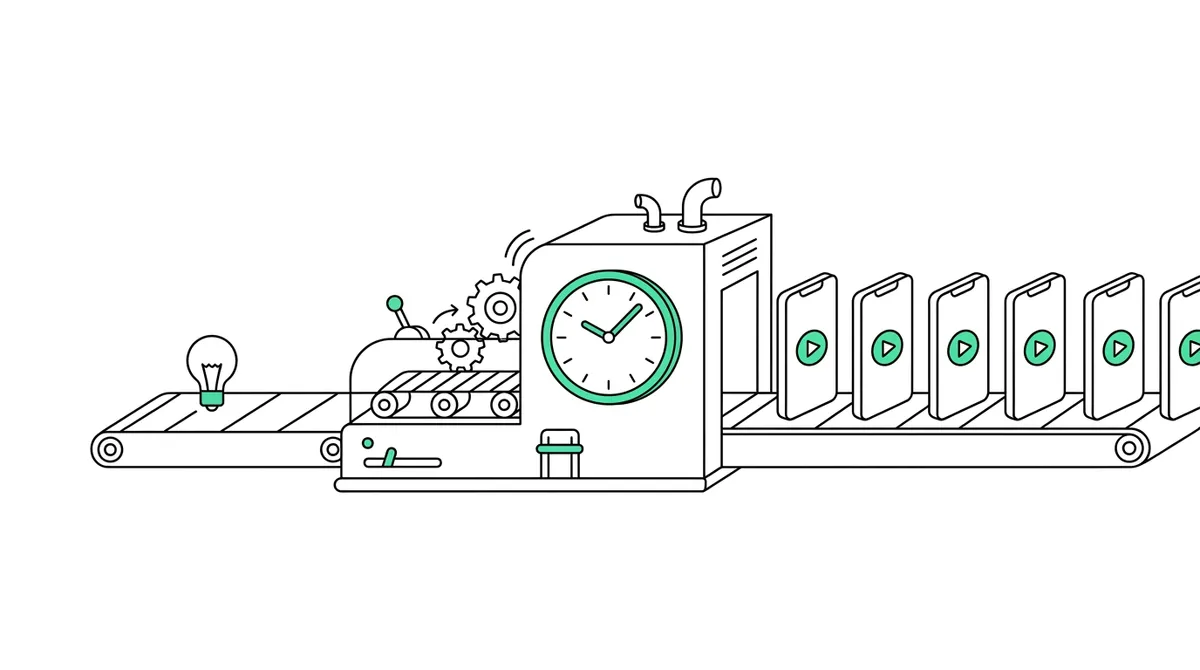
How to automate video creation with AI: the short answer
Every short video, made by hand or by AI, goes through the same six jobs. Automation means software does each one and passes the result to the next, with no person in between:
- Topic. Pick what today's video is about, from a list, a niche or trending ideas.
- Script. Write a hook for the first two seconds, the body, and an ending that asks for a follow or a comment.
- Voice. Read the script out loud in a natural voice, in the language of your audience.
- Visuals. Make a picture or a moving clip for every line, plus captions, so the video works on mute.
- Edit. Put voice, visuals, captions and music together and export a vertical 9:16 video.
- Post. Upload it to YouTube Shorts, TikTok, Instagram Reels and others, with a title and description, at the time your audience is online.
Then a scheduler runs those six jobs at fixed times, every day. That is the whole idea. The hard part is not any single step, it is keeping the quality up when nobody is watching each video before it goes out. If you just want all six done for you, an AI video automation tool handles them in one place; the rest of this guide explains each way to build it.
What each step needs from you
Automated does not mean thoughtless. Each step has one or two decisions you make once, up front. Get these right and the daily videos take care of themselves.
| Step | What the AI does | What you decide once |
|---|---|---|
| Topic | Picks a fresh angle each run | The niche, or your own list of topics |
| Script | Writes hook, story and ending | Style (educational, story, comedy), length, the call to action |
| Voice | Reads it with timing and emotion | Voice, language, speed |
| Visuals | Makes scenes, characters, captions | The format and look, caption style, background |
| Edit | Cuts it together with music and sound effects | Music on or off, brand logo or watermark |
| Post | Uploads with a title and description | Which accounts, how many a day, what time, public or unlisted |
Three ways to automate video creation
There is no single right way. It depends on how much control you want and how much time you have to maintain it.
1. Wire separate tools together (Make, n8n, Zapier)
You pick a writing AI, a voice tool, an image or video generator and an editor, and connect them in a no-code workflow tool. A typical flow reads a row from a Google Sheet, asks a chatbot for a script, sends it to a voice tool, generates clips, stitches them with a video-template service and uploads the result. It is flexible and you can swap any part. The cost is upkeep: five or six accounts, five or six bills, and the workflow breaks when one of them changes its API. Plan a few hours a week of fixing.
2. Write code against video APIs
Developers can do the same in Python or JavaScript, calling each service directly. You get full control and the lowest cost per video at scale, but you own every bug, retry and failed upload. Our guide to the AI video generation API shows what a finished-video API looks like compared with raw clip generators.
3. Use one tool that does every step
An all-in-one AI video automation tool does all six jobs inside one product: you choose the format and the schedule, and it makes and posts the videos. Less control over each frame, but nothing to wire and nothing to maintain. This is what Autoclips automations do, and the rest of this guide shows how to set one up.
| Wired tools (Make, n8n, Zapier) | Your own code | All-in-one tool | |
|---|---|---|---|
| Setup time | Days | Weeks | About 10 minutes |
| Upkeep | Fix broken steps often | You own every bug | Handled for you |
| Control | High | Full | Format and settings |
| Accounts and bills | 4 to 6 | 4 to 6 | 1 |
| Posting | Extra step to build | Extra code | Built in |
| Best for | Tinkerers, custom formats | Developers at large volume | Creators who want a channel running this week |
How to set up a video automation in Autoclips, step by step
- 1
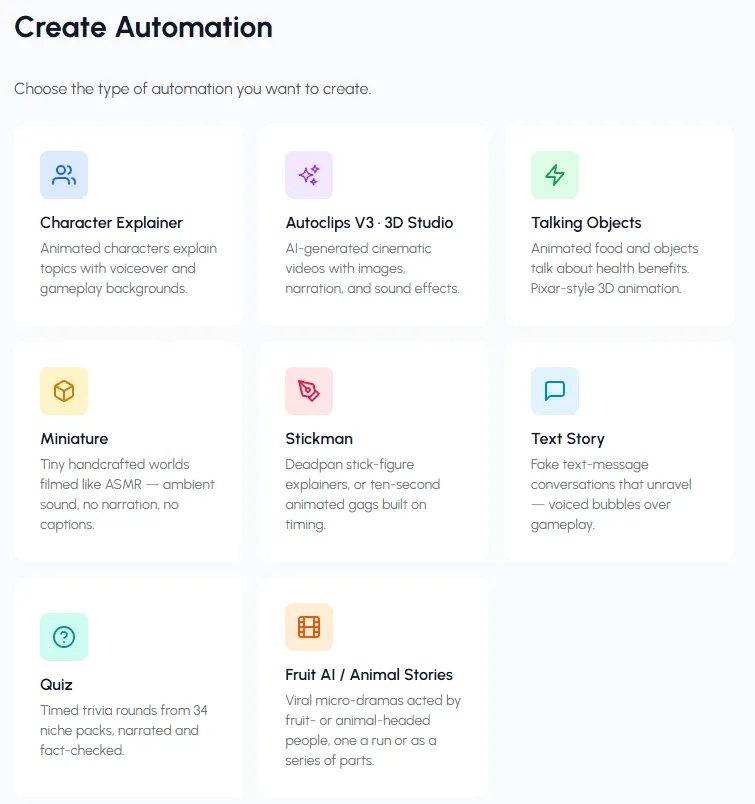
Open Automations and pick a format
Sign in to Autoclips, open Automations in the left menu and press Create Automation. Pick what kind of video it makes: Character Explainer (cartoon characters explain a topic over gameplay), Autoclips V3 · 3D Studio (cinematic narrated stories), Talking Objects, Miniature, Stickman, Text Story (fake text chats), Quiz or Fruit AI / Animal Stories.
Not sure? Character Explainer and Stickman are the easiest to start with: they work in almost any niche.
- 2
Name it and set the schedule
Give the automation a name you will recognise, like "Daily Space Facts", and pick a goal: get views, grow followers, drive sales, brand awareness, or your own.
Then choose 1, 2 or 3 videos per day, the posting time for each, and your timezone. Pick times when your audience is awake, not when you are.
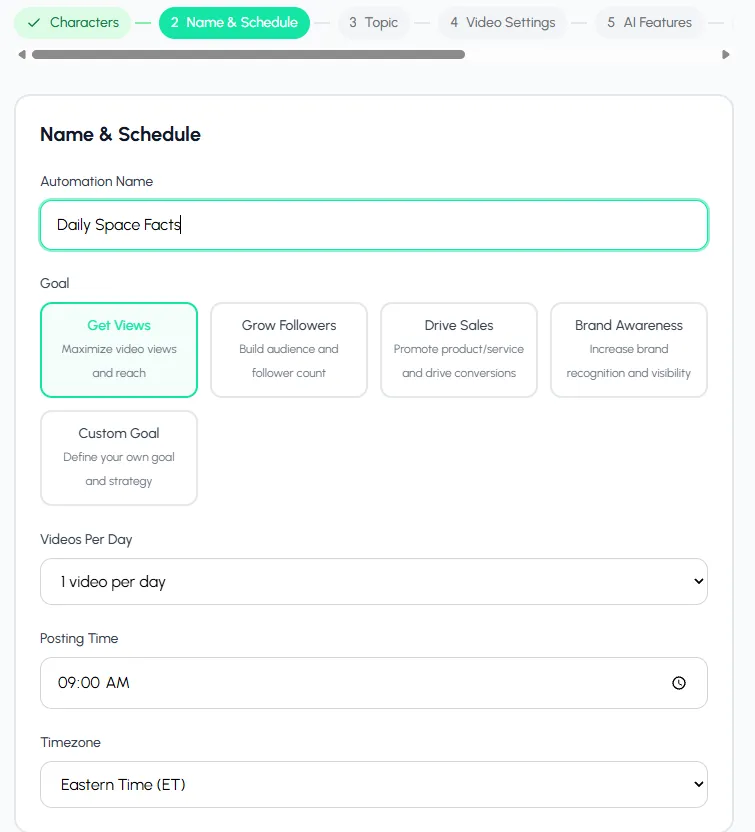
Name it, pick a goal, then set how many videos a day, the posting time and your timezone. - 3
Choose the topics
Pick a topic category, like Space & Cosmos, Money & Finance or Crime & Mystery, and each run finds a fresh angle inside it. Or switch to Custom Topic and describe exactly what the channel covers.
Then pick the style (Educational, Comedy, Story or Brain Rot) and what viewers should do at the end: follow, comment a word, visit your site, subscribe or share.
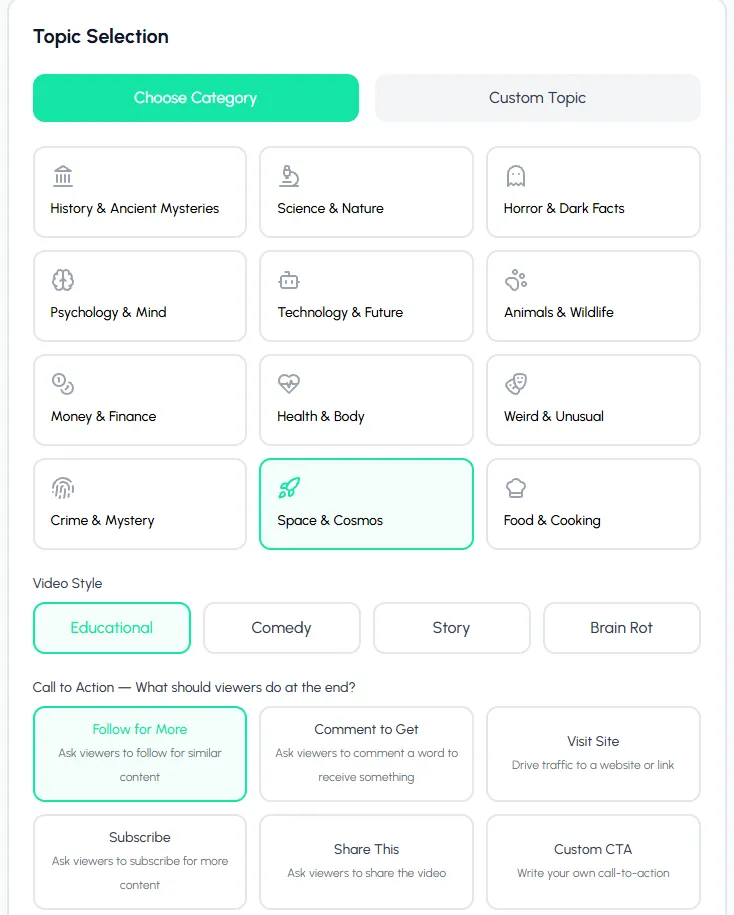
Pick a topic category (or write your own topic), a style and what viewers should do at the end. - 4
Set the look, voice and music
Choose the video length, the script quality, the language, the background, the caption font, whether scenes get pictures and sound effects, and the music. Each format has its own options; leave the defaults if you're unsure, they are tuned for Shorts and TikTok. You can also add your brand, so videos mention your product or show your logo.
- 5
Turn on posting
Every video is saved to your library, and you can get an email when each one is ready. To post automatically, connect your accounts once under Connect Socials, then switch on Post to TikTok, YouTube, Instagram, Facebook, X or Snapchat. For YouTube you also choose public, unlisted or private.
Leave posting off for the first few videos if you want to watch them before they go live.
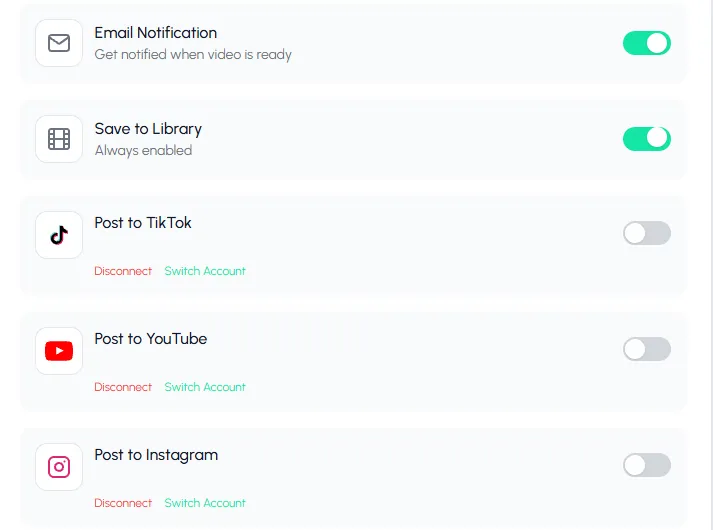
Turn on the platforms each video should post to. Everything is also saved to your library. - 6
Check the cost, create it, then test it
The last screen sums up everything and shows the estimated credits per video and for a whole month at your schedule. Press Create Automation.
On the automation card, press Test to make one video now instead of waiting for the first posting time. Watch it. If the topic or style is off, edit the automation and test again.
Set it up once and the next video is made and posted at the time you chose.
Create an automationWhat to automate and what to keep for yourself
Automate the work that is the same every day. Keep the decisions that make your channel different.
- Automate: writing, voice, scenes, captions, music, exporting and uploading at set times.
- Keep: the niche, the format, the voice and look of the channel, and a weekly look at what performed.
- Check weekly: the five best and five worst videos. Move the topic settings towards what worked.
- Reply yourself: comments are where a channel builds trust. A quick reply from a real person is worth more than another video.
6 mistakes that kill automated video channels
- Mixing niches. A channel that posts space today and recipes tomorrow confuses both the viewer and the algorithm. One automation, one niche.
- Posting more than you can stand behind. Three average videos a day do worse than one good one. Start with one a day; see how many Shorts to post per day.
- Never watching the output. Watch the first ten videos in full. Automation repeats mistakes as reliably as it repeats good work.
- Running out of credits. When an automation can't pay for a video, it pauses and tells you. Check the monthly estimate before you add a second or third automation.
- Changing everything at once. Change one setting a week (the hook style, the length, the posting time) so you can see what moved the numbers.
- Copying other channels. Platforms push original work and limit repetitive, mass-produced uploads. Your own topics and a consistent series are what grow.
Automating with an AI assistant instead of a schedule
A schedule is best when you want the same kind of video every day. If you would rather say "make me three videos about this week's space news and post the best one", connect Autoclips to Claude or ChatGPT and ask in plain words. The assistant shows the credit price and waits for your yes before it makes anything. See how to make videos with Claude and automating a YouTube channel with an AI agent.
Want the bigger picture of how the pieces fit, and where to buy or build each one? Read AI content pipelines with video. For a faceless channel from scratch, see the faceless YouTube automation guide.
Made with Autoclips
Real videos people made in the app. Tap one to watch it with sound.
Frequently asked questions
Can AI fully automate video creation?
Yes. Today one tool can pick a topic, write the script, voice it, make the visuals, edit and post the video on a schedule, with no person in between. Most creators still watch the first videos and check results weekly, because automation repeats mistakes as reliably as it repeats good work.
What is the best way to automate video creation?
If you want a channel running this week, an all-in-one tool like Autoclips automations is the fastest: one setup, one bill, posting built in. If you need a custom format, wire tools together in Make, n8n or Zapier, or write code against an API. Many people combine both.
How do I automatically make and post YouTube Shorts?
Create an automation, choose the format and topics, set 1 to 3 videos a day with posting times, connect your YouTube account and switch on Post to YouTube. Each video is made and uploaded at the time you set. See YouTube Shorts automation for the details.
Can I automate video creation for free?
Signing up for Autoclips is free, but each video uses credits, because every video is written, voiced and rendered for you. Free tools exist for single steps, like editing or scheduling, but you then do the other steps by hand. There is no fully free way to make and post a finished AI video every day.
Is it allowed to post AI-made videos automatically?
Yes, posting through official connections is allowed on YouTube, TikTok and Instagram. What platforms limit is repetitive, mass-produced content with no original value, and that applies whether a person or a program uploads it. Original topics and a consistent series are fine.
How many videos should an automation post per day?
Start with one a day. Move to two or three only if the videos keep their quality and each one still gets views. Posting more is not better if the average video gets worse.
What happens if an automated video fails?
In Autoclips the run shows as failed on the automation, you get the credits back for a video that wasn't made, and the next run goes ahead at its time. If you run out of credits, the automation pauses until you add more and press Resume.
Set up your first video automation
Pick a format, a topic and a posting time. Autoclips writes, voices, edits and posts a new video every day.
Create an automationAyaz Alam · Founder of Autoclips
Ayaz builds Autoclips and makes the tutorials on its YouTube channel. Every step in these guides is tested in the app before it is published.