
AI Character Voice Generator for Videos: Give Every Character Its Own Voice
An AI character voice is a voice that belongs to one character: you pick or make it once, and every line that character says is spoken in it, with the emotion and speed you choose. In Autoclips Character Explainer the voices are part of the video, not a separate audio file. Built-in characters come with a voice already set up, and your own characters can use a library voice, a recording, or a voice made from a sample you upload.
Quick answer
- A character voice generator turns a script into speech in a voice that belongs to one character, so a two-character video sounds like two different people.
- In Autoclips Character Explainer, built-in characters already have a voice. For your own character, pick one from the voice library (filter by gender, accent and style), record yourself, or upload 20 seconds to 5 minutes of clear speech.
- Set how expressive the voices are (Off, Subtle, Normal, Expressive) and how fast they talk (0.75x to 1.5x). Your own characters can keep their own speed.
- Scripts, voices and captions come out in the language you pick. Only use a voice that is yours or that you have permission to use.
What an AI character voice generator is
Most text-to-speech tools give you one narrator. A character voice generator is different: each character has a voice of its own that stays the same across every video, so your channel's grumpy professor always sounds like the grumpy professor. That consistency is what makes viewers recognise a character after two videos.
There are two ways to use one. The first is standalone: you type lines, download audio, and put it into an editor yourself. The second is built into a video tool, where the voice is attached to the character and every line in the script is spoken, timed and captioned for you. The second saves the most time for short videos, and it's how Autoclips works.
What to look for in an AI character voice tool
| Feature | Why it matters |
|---|---|
| One voice per character, saved | The same character sounds the same in every video. |
| Emotion control | A comedy needs more expression than a calm explainer. |
| Speed control | Short videos are often a touch faster than normal speech. |
| Your own voice option | Record or upload a sample so a character sounds like you. |
| Many languages | The same character can speak Spanish, Hindi or Japanese. |
| Captions synced to the voice | Most short videos are watched muted. |
| Clear rules on voices | A good tool only lets you use voices you have the right to use. |
How character voices work in Autoclips
Built-in characters
The built-in cast in Character Explainer comes with a voice already set up for each character, so you can pick a character and make a video straight away without touching any voice settings. Our pages on Family Guy AI voice videos and the Stewie Griffin AI voice generator show that side.
Your own characters
When you Create Your Own Character, you give it a picture (upload one or generate it), a personality, and a voice. The voice can come from three places:
- The voice library. Browse ready-made voices and filter by gender, accent and style. Press play to hear each one.
- Record it. Read a short text aloud for at least 20 seconds, and the character gets a voice based on your recording.
- Upload a sample. Upload 20 seconds to 5 minutes of clear speech (MP3 or WAV) and trim it. Longer, cleaner audio gives a better voice. If your video is not in English, use a sample in that language.
Your characters are saved, so the same voice is used every time you cast them. Each one can also have its own speaking speed.
How to set up character voices, step by step
- 1
Start a Character Explainer video
Open Character Explainer, type your topic or paste a script, and pick the language. The voices will speak in that language, and the captions follow.
- 2
Pick or create your characters
On the Character step, choose Single Character for one narrator or Dialogue for a conversation. Tap Change to pick from the built-in cast or your own characters.
Want a new one? Create Your Own Character walks you through the picture, the personality and the voice.
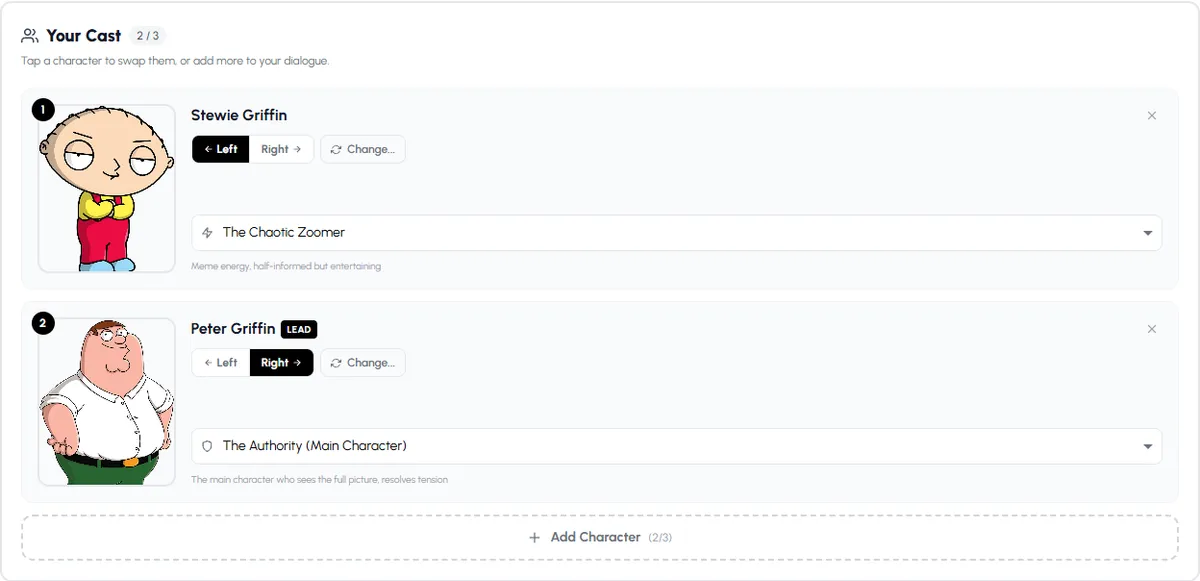
Each character in the cast speaks in its own voice. Swap any of them with Change. - 3
Set emotion and speed
Under the cast, choose the voice model, then Voice Emotion: Off for a steady tone, Subtle, Normal (emotion from context: exciting hooks, curious questions) or Expressive for comedy. Set Speech Speed from 0.75x to 1.5x; 1.15x is a good default for short videos.
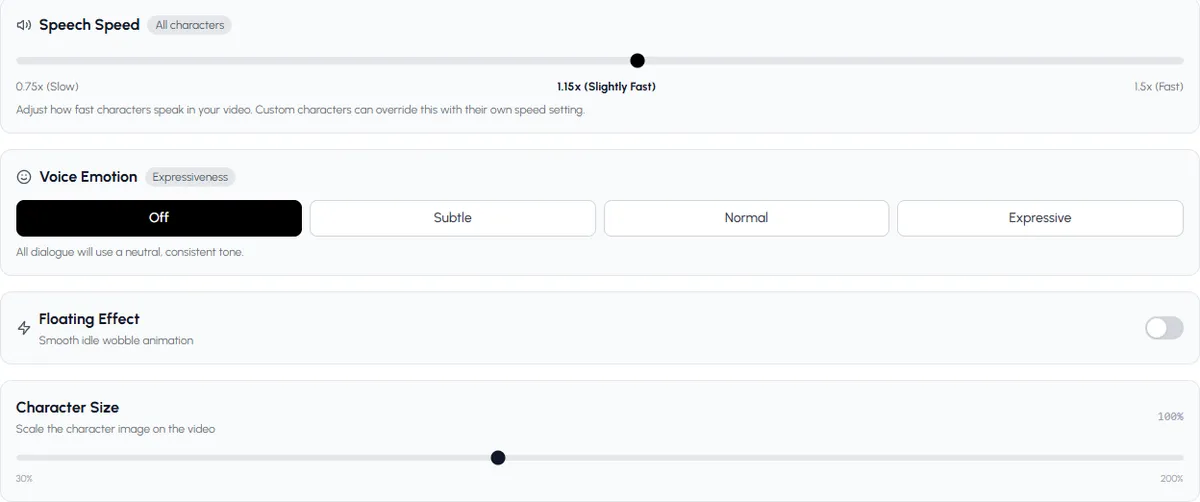
Speech speed and voice emotion apply to the whole cast; your own characters can keep their own speed. - 4
Check the script, then generate
Read the script. Each line is tagged with the character who says it. Fix any line that doesn't sound like that character, preview the video and generate it. Every line is spoken in the right voice, with captions.
Make a character, give it a voice, and hear it in a real video.
Open Character ExplainerTips for character voices that sound right
- Match the voice to the look. A tiny character with a deep voice is a joke; use it on purpose or not at all.
- Make the pair sound different. In a dialogue, pick one higher and one lower voice, or two different accents.
- Use emotion for comedy, not for facts. Expressive voices sell jokes; a calmer setting sells explanations.
- Record in a quiet room. If you make your own voice, background noise and echo end up in it.
- Write for the voice. Short sentences, contractions, how people actually talk. A voice can only be as natural as the line.
- Keep the character consistent. Same voice, same personality, every video.
Character voices in other languages
Pick the language before you make the video and the script is written in it, not translated word for word, so the characters sound natural. The language list covers dozens of languages, from Spanish, Portuguese and Hindi to Japanese, Arabic and Swahili. If you made your own voice from a sample, a sample in the same language gives the best result.
Related guides
If you only need text turned into a cartoon voice, read cartoon character text to speech. To use two voices in a conversation, see two characters explaining over gameplay. For voice cloning in depth, our AI voice cloning guide covers it, and the character explainer video maker page shows finished examples. Stickman characters can talk to each other in their own voices too: see AI stickman videos.
Made with Autoclips
Real videos people made in the app. Tap one to watch it with sound.
Frequently asked questions
What is the best AI character voice generator?
For videos, the best one is built into the video tool, so each character's voice is saved, spoken on the right lines and captioned automatically. Autoclips Character Explainer does this, with emotion and speed controls and many languages. For audio files only, a standalone text-to-speech tool is enough.
Can I make my own character voice?
Yes. When you create your own character in Autoclips, pick a voice from the library, record yourself reading aloud for at least 20 seconds, or upload 20 seconds to 5 minutes of clear speech. Use only your own voice or one you have permission to use.
Can I clone a celebrity's voice for my character?
No, and you shouldn't with any tool. Making a voice from someone's recordings without their permission can break platform rules and the law. Use the voice library, your own voice, or a voice actor who has agreed.
Do built-in characters have their own voices?
Yes. The built-in characters in Character Explainer come with a voice already set up, so you can make a video without choosing one.
Can I change how emotional the voice sounds?
Yes. Voice Emotion has four settings: Off, Subtle, Normal and Expressive. Use Expressive for comedy and a calmer setting for explainers.
Can a character speak another language?
Yes. Pick the language at the start and the script, voices and captions all come out in it.
Is the AI character voice generator free?
Signing up for Autoclips is free. Making a video uses credits, and creating your own character costs a small number of credits once.
Make a video where every character sounds like themselves
Pick a character, give it a voice once, and Autoclips speaks every line in that voice, with captions.
Give your character a voiceAyaz Alam · Founder of Autoclips
Ayaz builds Autoclips and makes the tutorials on its YouTube channel. Every step in these guides is tested in the app before it is published.