
How to Make Stickman Videos for Free (and What "Free" Really Costs)
You can make stickman videos for free in two ways: animate them yourself in a free app like Pivot Animator (Windows) or Stick Nodes (phone), or chain the free tiers of several AI tools for the script, pictures, motion and voice. Both cost nothing but time. All-in-one AI makers that do everything for you usually charge; in Autoclips, signing up is free, but videos use credits on a paid plan.
Quick answer
- Free route 1, by hand: Pivot Animator (Windows) or Stick Nodes / FlipaClip (phone) for the animation, your phone for the voice, a free editor for captions. Costs hours, not money.
- Free route 2, free AI tiers: a chatbot writes the script and scene prompts, free image and video tools make the scenes, an editor joins it all. Free within daily limits; the character often changes between shots.
- Paid route, all in one: Autoclips Stickman writes, voices, animates and captions the video from one line. Signing up is free; making videos needs a paid plan and uses credits.
- Free apps add a watermark until you upgrade (Stick Nodes, FlipaClip). Pivot Animator has no watermark.
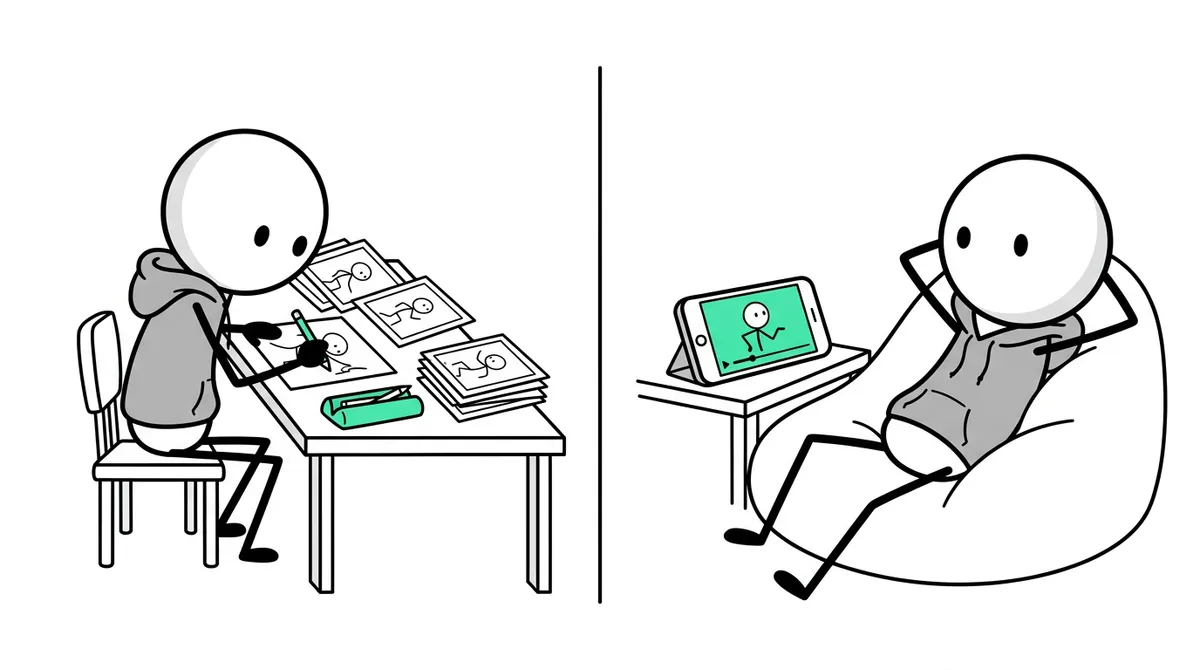
The 3 routes, side by side
| By hand (free apps) | Free AI tiers (several tools) | All-in-one AI (Autoclips) | |
|---|---|---|---|
| Money | Free | Free within daily limits | Paid plan, credits per video |
| Time for a 60 s video | Several hours to a day | One to three hours | A minute or two to set up |
| Script | You write it | A chatbot writes it | Written for you, or paste your own |
| Voice | Record it yourself | A free voice tool, with limits | Built in, many languages |
| Same character every shot | Yes, you draw it | Hard: you fix it shot by shot | Yes, kept for you |
| Watermark | Pivot: none. Stick Nodes, FlipaClip: until you upgrade | Depends on each tool | None |
How to make stickman videos for free by hand
This is the only route that is free with no limits. It is slow, but you own every frame and it is how most animators learn.
- 1
Write a short script
Keep it to 60 to 90 seconds read aloud, about 150 to 220 words. Open on the most surprising moment, not on background. One character, one problem, one ending.
- 2
Record the voice first
Read the script into your phone's voice recorder in a quiet room, close to the mic. Recording first lets you time the animation to the words, which is far easier than the other way round.
- 3
Animate in a free app
On Windows, use Pivot Animator: drag the joints of the stick figure into a pose, add a frame, move it a little, repeat. On a phone, Stick Nodes lets you pose a rigged figure and fills in the motion between poses; FlipaClip is for drawing each frame by hand.
Set the canvas to vertical 9:16 before you start if the video is for Shorts, TikTok or Reels. Step-by-step guides: on PC and on mobile.
- 4
Put it together with captions
Import the animation and your voice into a free video editor, line them up, and add captions. Most free editors can auto-caption from the voice. Add one or two sound effects for hits and reveals.
- 5
Export and post
Export at 1080 x 1920 for vertical platforms. Note that the free versions of Stick Nodes and FlipaClip put a watermark on the export; Pivot Animator does not.
The free AI route, and its catch
The "100% free" AI stickman tutorials on YouTube mostly follow the same recipe: a chatbot writes the script and a picture prompt for every scene, a free image tool draws the scenes, a free video tool animates them a few seconds at a time, a free voice tool reads the script, and an editor joins it. Each tool's free tier gives you a few uses a day.
It does work. The catches are real, though: you copy prompts between five or six sites, you hit daily limits halfway through a video, and the stickman's face and clothes drift from shot to shot unless you fix each one. Plan on an evening per video while you learn it.
The paid all-in-one route: what you get and what it costs
Autoclips Stickman does every step above in one place. You pick a mode, type one line (or paste your script), choose voice, language, motion and look, check the plan, and get a finished vertical video with captions and the same character in every scene. You can post it from the app or set up a series that posts on a schedule.
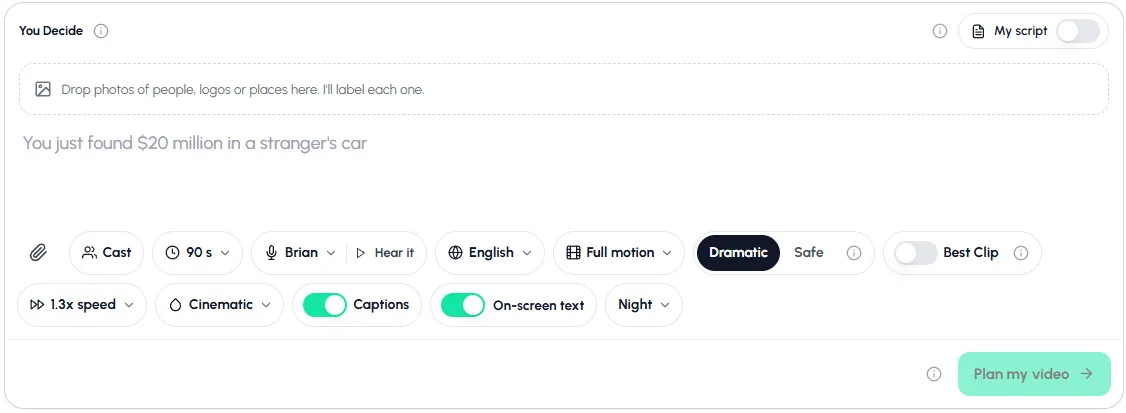
To be clear about cost: signing up for Autoclips is free and you can open Stickman and see every option, but no Stickman video is made on the free plan. Videos need a paid plan and use credits, and the price of each video is shown before you make it. Failed steps are never charged. Current plans are on the pricing page.
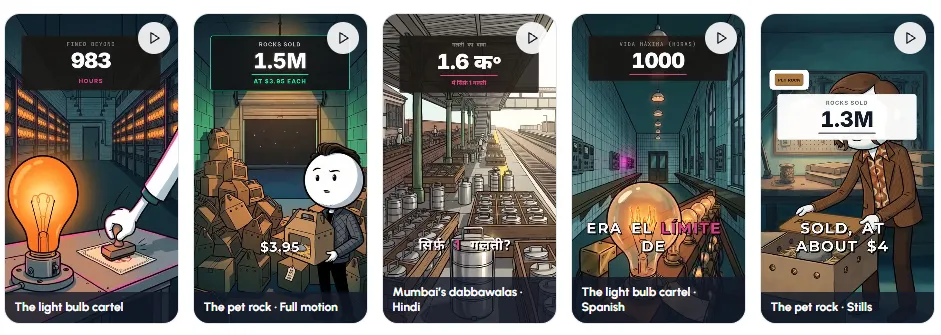
Open Stickman, look at the options and the example videos, and decide if it's worth it for you.
Look around StickmanWhich route should you pick?
- You want to learn animation, or you have more time than money: by hand. Start with Pivot or Stick Nodes.
- You want to test whether a stickman channel idea gets views: the free AI route for your first three to five videos.
- You're posting daily, or your time is worth more than a few dollars an hour: an all-in-one tool. A channel needs volume, and volume is where hand work breaks.
Whichever you pick, the idea matters more than the tool. Stickman YouTube channel ideas lists niches that work, and faceless YouTube channel ideas has more beyond stickman.
Made with Autoclips
Real videos people made in the app. Tap one to watch it with sound.
Frequently asked questions
Is there a free AI stickman animation generator?
Not one that does everything for free with no limits. Fully free methods chain the free tiers of several tools, each with daily limits. All-in-one makers charge, because each video costs them money to write, voice and animate. Autoclips is free to sign up, and Stickman videos need a paid plan and credits.
What is good free software for making stickman animations?
Pivot Animator on Windows is free with no watermark. Stick Nodes and FlipaClip are free on phones, with a watermark on exports until you upgrade. Browser-based stick figure tools are free and work on Mac and Chromebook.
Can I make stickman videos for YouTube for free?
Yes, by animating them yourself in a free app and recording your own voice. Make sure every tool you use allows commercial use if you plan to join the YouTube Partner Program.
How do I make a stickman video without a watermark for free?
Use Pivot Animator on Windows, which has no watermark, and a free editor that doesn't add one. The free versions of Stick Nodes and FlipaClip add a watermark until you upgrade.
Do I need to pay to post stickman videos?
No. Posting to YouTube, TikTok and Instagram is free. You only pay if the tool you make the video with charges.
Can I try Autoclips Stickman for free?
You can sign up for free, open Stickman, see every mode and option and watch the example videos. Making a Stickman video needs a paid plan and uses credits.
When your time is worth more than the credits
Type one line and Autoclips writes, voices and animates a stickman video, ready to post.
See the all-in-one routeAyaz Alam · Founder of Autoclips
Ayaz builds Autoclips and makes the tutorials on its YouTube channel. Every step in these guides is tested in the app before it is published.